Start with the biggest.
Pick a drive or folder. Biggofiles lists accessible files from largest to smallest, with their paths, types, and modification dates.

A clearer look at what’s on your drive. Find your largest files, explore the details, and make room on your terms.
v1.0 · 64-bit · Portable ZIP
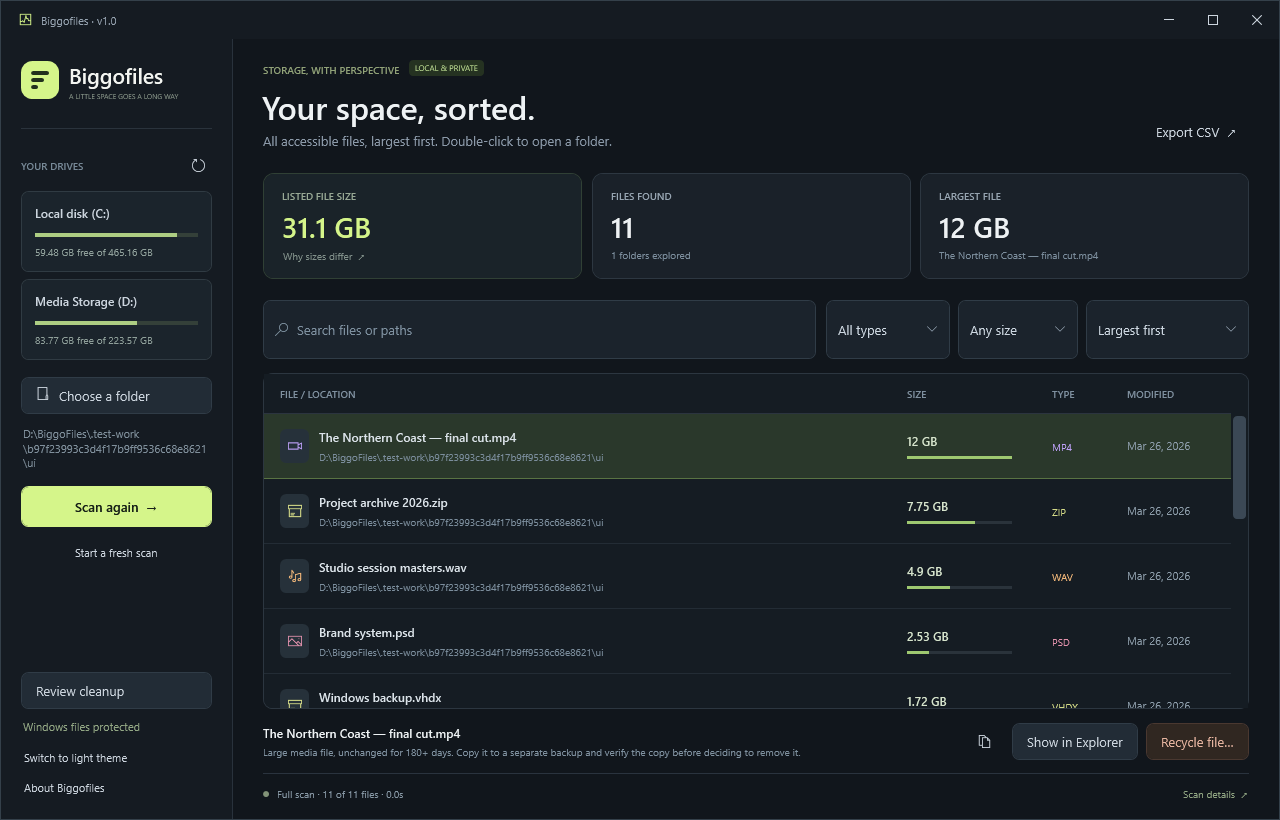
One small Windows app to turn a crowded drive into a list you can work with.
Pick a drive or folder. Biggofiles lists accessible files from largest to smallest, with their paths, types, and modification dates.
Search by file name or path. Filter by type and size, then sort the results to find what you’re looking for.
Scan again uses Windows’ NTFS change journal where available to refresh changed folders during the same session. A fresh scan is always an option.
Show a file in Explorer, copy its path, or review cleanup suggestions. Moving a file to the Recycle Bin requires your confirmation.
Export your filtered, sorted list as CSV. Check scan coverage notes to see skipped locations, and export those notes when you choose.
Scanning reads file metadata locally. No account, ads, analytics, or uploaded scan results. Switch between dark and light views to suit your screen.
A native Windows interface, with the details you need and your next action close by.
Screenshots use generated, sparse demonstration files. Listed sizes are logical file sizes, not a promise of recoverable disk space.
No installer, account, or internet connection needed to use the app.
Download and extract the ZIP. Open Biggofiles.exe, keeping Biggofiles.exe.config beside it.
Select a drive or choose a folder, then click Scan location. The finished list includes all files the scan discovered.
Search, filter, and inspect your results. Open a file’s location in Explorer and verify a separate backup before removing anything you might need.
Biggofiles v1.0 is free to download and open source under the MIT license.
A portable storage browser for your desktop.
The code is open for you to inspect, use, modify, and share under the MIT license. No subscription or paid unlock.
Scans stay on your computer. Exports are saved only when you choose.
Read the privacy policy
Downloads are hosted on GitHub. Questions about your setup? Contact OG STUDIO.
Yes. Biggofiles v1.0 is free and open source under the MIT license. There is no account, subscription, or paid feature unlock.
Scanning reads directory metadata, such as file names, paths, sizes, attributes, and modification times, rather than file contents. Results stay in memory on your computer and are discarded when you close the app. Only exports you choose are saved. See the privacy policy for details.
No. You choose a file and confirm before it is moved to the Windows Recycle Bin. Protected system, application, and profile locations are blocked from recycling. Cleanup suggestions do not mean a file is unused or backed up. Review the file and verify a separate backup first. Biggofiles never empties the Recycle Bin.
Biggofiles reports logical file sizes. Compression, sparse files, cloud placeholders, hard links, protected locations, and filesystem overhead can make these differ from physical disk usage. Hard-link paths appear separately. Listed size is not an estimate of space you’ll recover, and recycled files still occupy storage until you empty the Recycle Bin.
Windows permissions can prevent access to some locations. Check Scan details for skipped folders and coverage notes. Directory links and mount points encountered beneath your chosen location are not followed. An optional administrator instance can reach more folders, but some remain protected.
64-bit Windows 10 or Windows 11 with .NET Framework 4.8. Extract the ZIP, then open Biggofiles.exe with its configuration file beside it. No installation or network connection is required for scanning. The v1.0 executable is unsigned, so Windows may show an unrecognized-publisher notice. Use the official GitHub release and review its published checksums.
Start with a clearer picture of your files.