Your next stop, ready.
Save a destination and your preferred route options. Tap its tile to open directions in Google Maps.

Your favorite places, videos, music, and links, saved as buttons you recognize. Keep the everyday things close, and get back to your day.
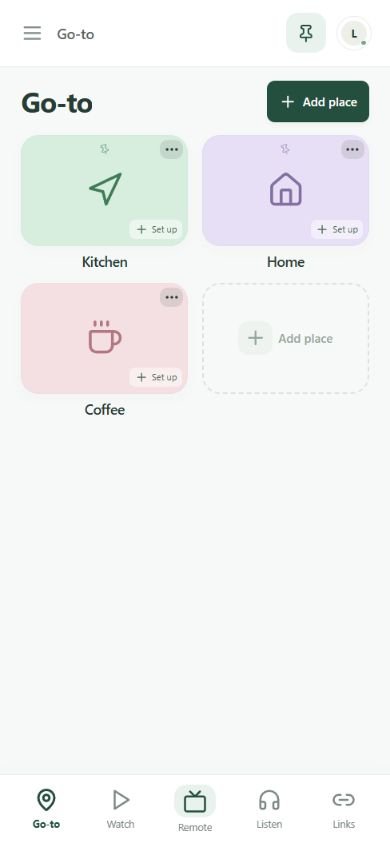
Preview of the current app interface. Set up each shortcut your way.
From the morning coffee stop to the playlist you always come back to. Give each one a place of its own.
Save a destination and your preferred route options. Tap its tile to open directions in Google Maps.
Share a YouTube link to LifeMacro or paste it into Watch. Return to that video, with an optional saved starting point.
Keep songs, playlists, and podcasts together. Tap to open a saved link in your music or podcast service.
Share a website from your browser or paste its address. Give it a name and a button you can find at a glance.
Pin your favorites to the first screen, give that page your own name, and organize the rest in collections.
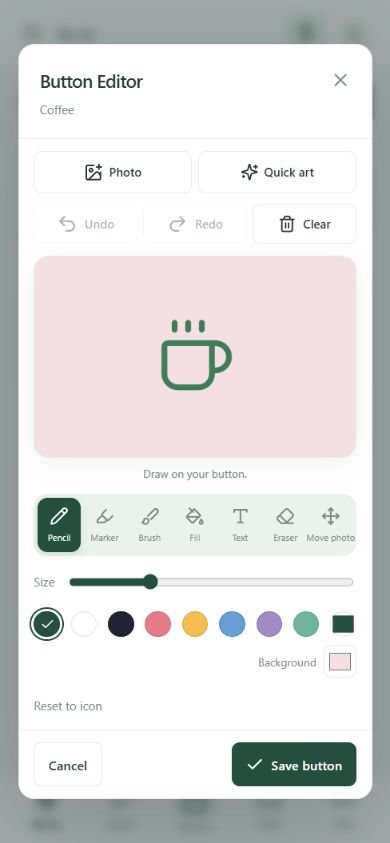
Add a photo, draw, place text, or choose from 36 offline Quick art pictures. Set colors and a theme that feel comfortable.
Explore four views from the current LifeMacro interface. Select an image to enlarge it.
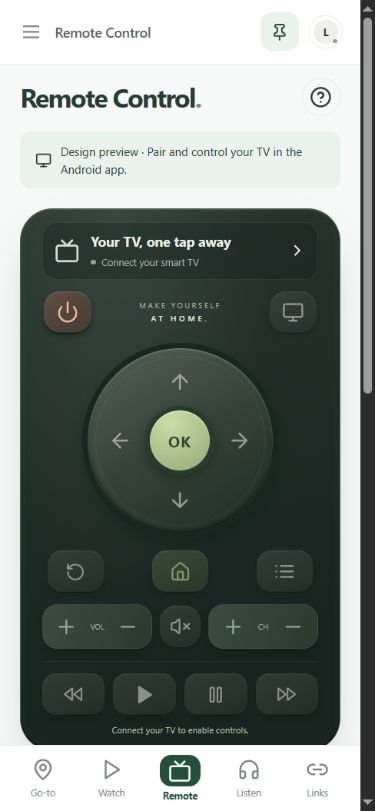
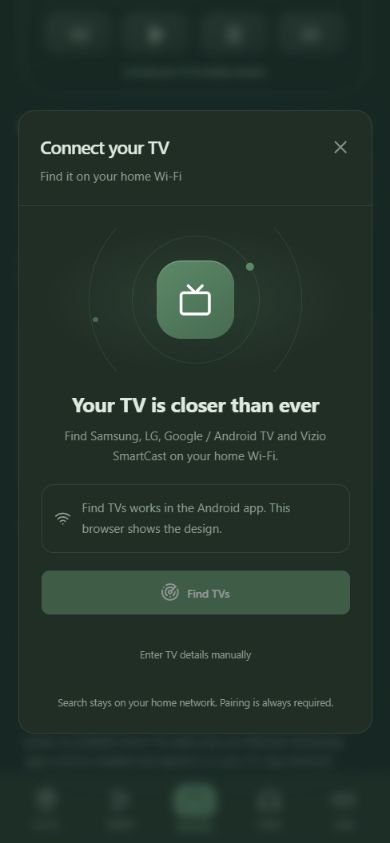
Pre-release interface previews. TV pairing and control run in the Android app; browser previews show the design. Appearance and available controls may change before launch.
Open Remote, find a compatible TV on your home Wi-Fi, and complete its pairing step. Keep everyday TV controls beside your everyday shortcuts.
Designed for supported Samsung Tizen, LG webOS, Google / Android TV, and Vizio SmartCast models. Phone and TV must share the same home network. Compatibility, power-on, inputs, and app shortcuts depend on TV software and settings. Streaming apps may need installation, sign-in, or a subscription. Roku TV and Fire TV are not supported.
Add a place, paste a link, or choose LifeMacro from Android’s Share menu.
Pick a name, a color, and a picture. Pin the shortcuts you use most.
Open the route, video, playlist, or page in its app. Your familiar button is there next time.
LifeMacro for Android is coming soon to the Google Play Store. The official store link will appear here when the app is available.
Read the LifeMacro privacy policyYour favorite actions, in one familiar place.
Questions about LifeMacro? Contact OG STUDIO.
LifeMacro is being prepared for Android on Google Play. This page will link to its official listing at launch.
LifeMacro saves links and opens them in the appropriate app or browser. Your video, music, or podcast service handles playback, downloads, account access, and any subscription.
You can browse and organize your saved shortcuts and edit button artwork offline. Opening websites, loading YouTube thumbnails, streaming, and getting directions can need internet. TV control needs a connection to a compatible TV on your home network.
No LifeMacro account is required. LifeMacro does not request location permission. When you open directions, your maps app handles location under its own permissions.
TV support depends on the television’s software, network settings, and remote-control capabilities. Supported platforms include Samsung Tizen, LG webOS, Google / Android TV, and Vizio SmartCast. Some models and commands may not work. Roku TV, Fire TV, and infrared-only televisions are not supported.
Yes. Export or restore a backup in Settings using Android’s file picker. Backups include your shortcut library, button artwork, and preferences. They are unencrypted files, so choose a storage location you trust. TV pairing credentials are excluded. Read more in the privacy policy.
A little less searching. A little more living.